Friday, June 10, 2016
Using NLTK tool kit to classify text using predefined libraries
install and import below libraries
Reading the training dataset from a CSV, this can also be done from any file format or from any source
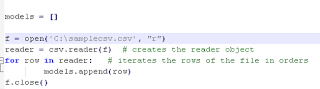
Once the train data is read, you can tokenize and stem if you prefer. This step can be skipped as tokenization can be done in the next steps while calculating TFIDF
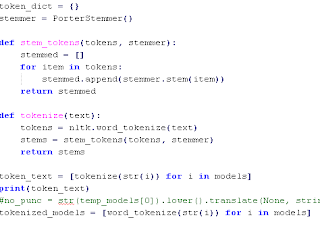
Append the tokenized content , can be skipped if not using tokenizing in the previous step
Using Naive_Bayes library to train and predict
Test your training model by submitting your new sentence
install and import below libraries
| rohitgopidi |
| rohitgopidi |
| rohitgopidi |
| rohitgopidi |
| Calculating count vectorizer to find the importance of the text in the document |
| rohitgopidi |
| rohitgopidi |
| rohitgopidi |
Thursday, August 23, 2012
Event ID 3002 - LoadPerf— Performance Counter Loading
| Add caption |
Loading
Performance counters are collected and used by services and applications. If they are installed incorrectly or with improper permissions, performance counters cannot be loaded, and services or applications cannot collect or interpret the data.
Log from the Event Viewer
Log Name: Application
Source: Microsoft-Windows-LoadPerf
Date: XXXXXXXXXXXXXXXXXXX
Event ID: 3002
Task Category: None
Level: Error
Keywords:
User: SYSTEM
Computer: XXXXXXXXXXXXXXXXXXXXXXXXXXX
Description:
The performance counter explain text string value in the registry is not formatted correctly. The malformed string is . The first DWORD in the Data section contains the index value to the malformed string while the second and third DWORDs in the Data section contain the last valid index values.
Event Xml:
<Event xmlns='http://schemas.microsoft.com/win/2004/08/events/event'><System><Provider Name='Microsoft-Windows-LoadPerf' Guid='{122EE297-BB47-41AE-B265-1CA8D1886D40}'/><EventID>3002</EventID><Version>0</Version><Level>2</Level><Task>0</Task><Opcode>0</Opcode><Keywords>0x8000000000000000</Keywords><TimeCreated SystemTime=XXXXXXXXXXXXXXXXXX'/><EventRecordID>110899</EventRecordID><Correlation/><Execution ProcessID='5288' ThreadID='284'/><Channel>Application</Channel><Computer>W</Computer><Security UserID='S-1-5-18'/></System><UserData><EventXML xmlns:auto-ns2='http://schemas.microsoft.com/win/2004/08/events' xmlns='LoadPerf'><param1> </param1><binaryDataSize>16</binaryDataSize><binaryData>00000000AB2E0000AB2E0000980B0000</binaryData></EventXML></UserData></Event>
Resolve:
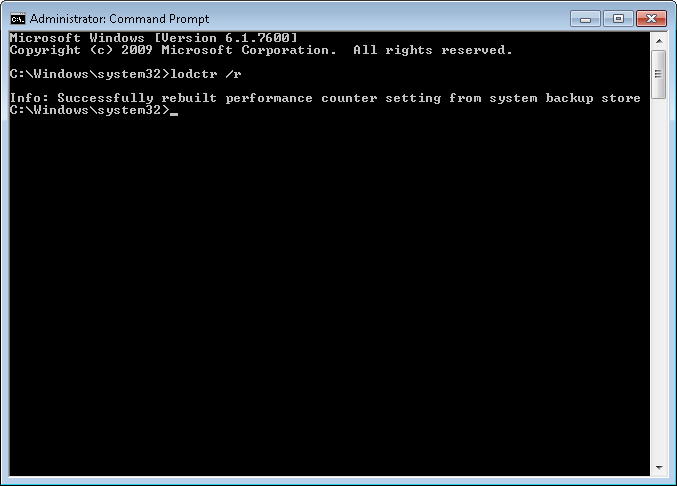
Open your Command Prompt as an administrator and type in the below command and Enter
>>lodctr /r
Thursday, August 16, 2012
Maintaining the Mac address of a VM
Make the below changes to the config file of the VM which is generally with .vmx extension
Remove the three lines that begin with the following from the configuration file:
ethernet[n].generatedAddress
ethernet[n].addressType
ethernet[n].generatedAddressOffset
ethernet[n].addressType
ethernet[n].generatedAddressOffset
In these options, [n] is the number of the virtual Ethernet adapter — for example ethernet0.
Add the following line to the configuration file:
ethernet[n].address = 00:50:56:XX:YY:ZZ (XX has to be hexadecimal number between 00h and 3Fh, and YY and ZZ must be valid hexadecimal numbers between 00h and FFh. )
Windows 8 installation procedure on a VM with Ubuntu or any Linux based OS as the Host
Microsoft has recently released the preview version of the most awaited Windows 8 which has no icons but a bunch of cool Apps. Below is the procedure for full installation on Windows 8 , this is a pretty simple install but there is a tricky part that has to be done during the installation in order to get the internet working on your new Windows 8.
13. Select the drive for installation

Microsoft has recently released the preview version of the most awaited Windows 8 which has no icons but a bunch of cool Apps. Below is the procedure for full installation on Windows 8 , this is a pretty simple install but there is a tricky part that has to be done during the installation in order to get the internet working on your new Windows 8.
- Create a Virtual Machine
.
In the New Virtual Machine wizard use the below option
- Choose Windows 7 as your new OS (this does the trick for internet access on Windows 8)
- Use the settings as per your requirement
- You will see the below screen which completes the creation of VM without an OS
- Now we have to install the OS in the VM , customize the hardware as per your requirements
- Select your ISO image destination and start installation on Windows 8
- Choose your options
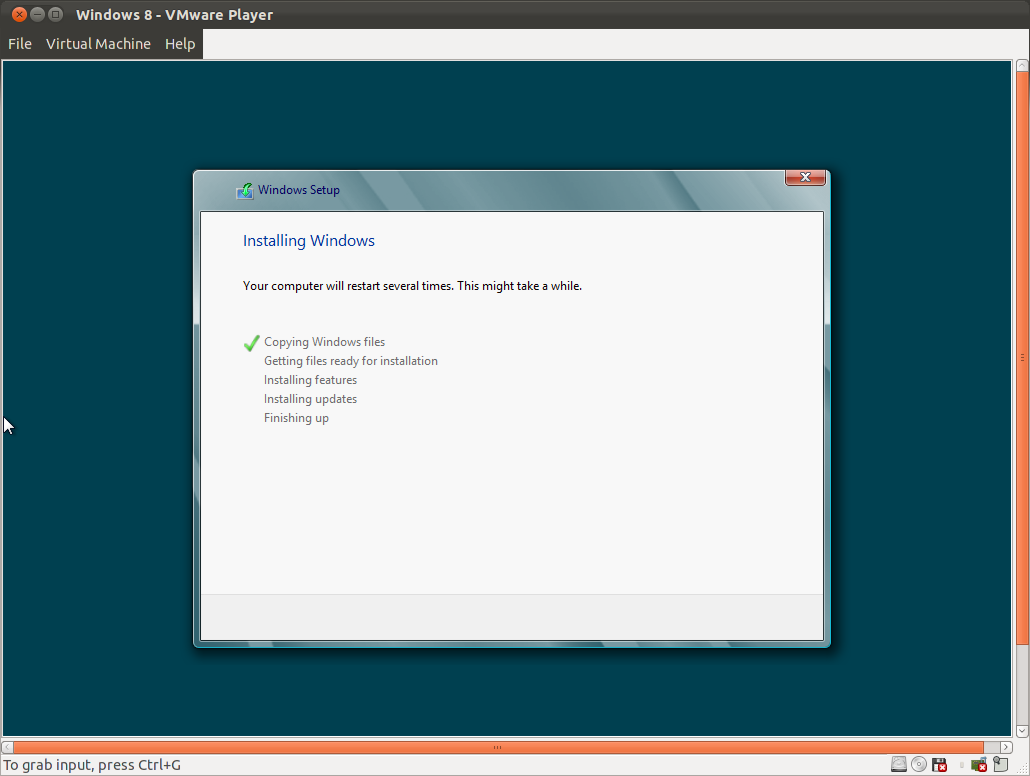
- Start the installation
- Followed by the activation window
- Read and accept the agreement
- Select the options below (2nd option for the fresh install)
13. Select the drive for installation
- Done and Personalize
Monday, May 14, 2012
Querying Active Directory
In order query the Active Directory :
1.Right Click on your mouse and click new>shortcut
2.Paste the below into the shortcut location
%SystemRoot%\SYSTEM32\rundll32.exe dsquery,OpenQueryWindow
3.Double click the shortcut now and you can search the whole of AD.
1.Right Click on your mouse and click new>shortcut
2.Paste the below into the shortcut location
%SystemRoot%\SYSTEM32\rundll32.exe dsquery,OpenQueryWindow
3.Double click the shortcut now and you can search the whole of AD.
Subscribe to:
Posts (Atom)